



Image
Running multiple WordPress sites doesn’t have to mean managing separate logins, duplicate plugins and scattered updates. WordPress Multisite lets you publish and maintain many sites from one installation, making it easier to scale content, keep standards consistent and reduce operational overhead.
To enable WordPress Multisite, back up your site, add WP_ALLOW_MULTISITE to wp-config.php, run Tools > Network Setup, and apply the generated wp-config.php settings and the required rewrite rules for Apache or Nginx.
Updated October 2026: This guide has been reviewed against current WordPress and Pantheon documentation, with clarified setup requirements, hosting guidance and answers to common Multisite questions.
What is WordPress Multisite?
WordPress Multisite lets you manage multiple sites from a single WordPress installation. All sites share the same core files, themes and plugins, making updates simpler. Each site maintains its own content tables in a shared database. Media uploads are also stored separately: the main site uses wp-content/uploads/, while additional sites use wp-content/uploads/sites/{site_id}/ by default. A Super Admin manages network-wide settings, while individual Site Admins control content.
Hosting requirements are higher than a standard WordPress install. For a stable Multisite setup, it is recommended to have at least 4GB RAM, high-frequency CPUs and PHP 8.3+ support. For optimal performance, use Redis or Memcached for caching and ensure generous PHP worker limits to avoid slow dashboards or timeouts.
WordPress recommends PHP 8.3 or greater, MySQL 8.0 or greater (or MariaDB 10.11 or greater), and HTTPS. Its requirements page specifies no RAM minimum; the 4GB figure above is a planning estimate, so size memory and PHP workers to traffic and the number of sites.
The ideal environment for Multisite is high-tier managed WordPress hosting, like Pantheon, which handles caching, scaling and performance. Cloud VPS platforms are a good alternative if you're comfortable with configuration, but shared hosting should be avoided due to the risk of traffic surges overwhelming your network.
Read How to Choose WordPress Multisite Hosting Providers to understand what to look for before making a decision.
Is WordPress Multisite right for your sites?
WordPress Multisite is a good choice for organizations managing related websites that need centralized administration, shared themes and plugins, and consistent updates. For example, universities can manage departmental websites from one network, while franchises can maintain individual location sites under shared technical standards. Each site retains its own content and users, while network administrators oversee the underlying WordPress installation.
However, that centralized control also means the sites share the same WordPress installation and underlying infrastructure. If you're managing unrelated client websites, need independent update schedules or hosting environments, or expect to separate sites later, managing multiple WordPress installations separately may be a better approach.
Learn more in Pantheon’s post on the benefits and drawbacks of WordPress Multisite before moving on to setup.
How to set up and install WordPress Multisite
Whether you’re converting an existing site to a Multisite or setting up Multisite on a brand-new WordPress install, the overall process is similar.
With a new installation, you can establish your network's URL structure, plugins, and permissions before any sites go live. When converting an existing installation, your current website becomes the network's main site and retains its content. However, you'll need to account for potential changes to URL structures, plugin compatibility, and how users and site administration are managed. Converting one site also doesn't automatically bring other existing WordPress websites into the network; those require a separate migration.
Your hosting provider also determines what's possible. For example, Pantheon uses a dedicated WordPress Multisite framework with its own Nginx configuration, so an existing standard WordPress site on Pantheon cannot be converted in place. Instead, you must create a new Multisite installation and migrate your existing site into it, which we’ll cover in the next section.
In any case, here are the steps:
- Start by backing up your entire site and database so you can restore them if anything goes wrong.
- Deactivate all plugins if you're converting an already existing site – this avoids conflicts during setup. You can re-enable them later after checking their Multisite compatibility.
- Check that pretty permalinks work. Go to Settings > Permalinks and confirm you're using a URL structure other than Plain. Then open a published post to verify its URL works correctly.
- To enable Multisite, access your site files through an SFTP client (like FileZilla) or your hosting control panel and edit the wp-config.php file. Just above the “That's all, stop editing! Happy publishing.” comment, add:
define('WP_ALLOW_MULTISITE', true);
This enables the Network Setup option but doesn't activate Multisite yet.
- Save and upload the file.
- Return to your WordPress dashboard and go to Tools > Network Setup.
- Decide how you want new sites in your network to be structured:
- Subdomains (site1.example.com): Each site gets its own subdomain. If you want to create new sites without configuring each subdomain individually, you'll need a wildcard DNS record (*.example.com) and corresponding web server configuration.
- Subdirectories (example.com/site1): Each site gets its own URL path under the main domain, so no additional DNS configuration is needed.
For older sites (over 30 days old), WordPress forces subdomains to avoid URL conflicts.
- Give your network a name, set the administrator email and confirm your URL choice, then click Install.
- WordPress will display two blocks of code – one for wp-config.php and one for .htaccess. Paste each snippet into the appropriate file (replacing the existing rewrite rules in .htaccess). The wp-config.php configuration will look similar to this example for a subdirectory network:
define( 'MULTISITE', true );
define( 'SUBDOMAIN_INSTALL', false );
define( 'DOMAIN_CURRENT_SITE', 'example.com' );
define( 'PATH_CURRENT_SITE', '/' );
define( 'SITE_ID_CURRENT_SITE', 1 );
define( 'BLOG_ID_CURRENT_SITE', 1 );
Only use the wp-config.php configuration WordPress generates for your network to ensure the values are correct. Also, if your server uses Nginx instead of Apache, .htaccess rules won't work because Nginx doesn't read that file. The required rewrite rules must be configured at the server level. Pantheon already includes Multisite-specific Nginx configuration in its WordPress Multisite framework, so you don't need to add these rules manually.
- Once saved, log back in. You should see a new My Sites menu, which means your network is live.
- To create your first site, go to My Sites > Network Admin > Sites > Add New, then enter a site address, title and admin email. WordPress will generate the required tables automatically.
Can each site in a WordPress multisite network have its own unique domain name?
If you’re wondering whether each site can have its own unique domain, the answer is yes, Multisite fully supports this through domain mapping.
Domain mapping allows individual network sites to run on separate branded domains (e.g., brand1.com, brand2.org, examplestore.io) while still sharing one WordPress installation. This is especially useful for franchises, universities, publishers or organizations managing multiple brands.
There are a few requirements to keep in mind:
- Each mapped domain must point to your multisite server via DNS (typically CNAME or A records).
- Every mapped domain needs its own valid SSL certificate or must be covered under a multi-domain certificate to avoid security warnings.
- You assign the unique domain to the subsite inside the Network Admin dashboard – then WordPress routes traffic correctly.
Multisite setup on Pantheon
Pantheon is a platform designed to help teams build, deploy, and scale WordPress, Drupal, and Next.js sites with governance, automation, performance, and security baked in.
Multisite fits naturally on Pantheon because the platform already supports multiple website portfolios, role-based access, version control and scalable infrastructure. However, setting up WordPress Multisite on Pantheon requires a dedicated Multisite Upstream, which Pantheon Support can enable for workspaces on Gold, Platinum or Diamond plans. This Upstream includes network-specific configurations — especially Nginx rules — that Multisite depends on to function reliably.
Image
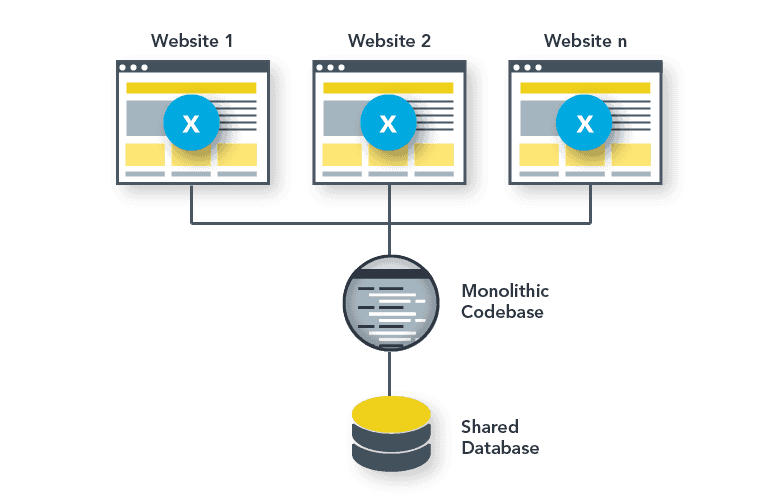
A diagram of the Pantheon Multisite architecture showing multiple websites connected to a single monolithic codebase and shared database.
Once the Multisite Upstream is enabled, use it to create a new Pantheon site and complete the WordPress network setup. You'll still need to add the code generated by WordPress during the Network setup to the wp-config.php file, but skip the .htaccess instructions because Pantheon's Multisite Upstream already includes the necessary Nginx configuration. This is important because there is a unique server configuration for Multisites on Pantheon that is different from standard WordPress installs. If you’re migrating an existing installation, you spin up a new Multisite instance and move your code, database and media into it manually.
Your choice between subdomains and subdirectories determines the remaining domain setup. Subdomain networks require you to configure DNS and add each subsite's hostname to the Pantheon Dashboard, since Pantheon's default platform domains can't serve individual subsite subdomains. Subdirectory networks use paths under a shared domain, although you can also map a custom domain to an individual site. Pantheon automatically provisions HTTPS for connected custom domains. For subdomain networks, avoid setting a Pantheon Primary Domain, as this would redirect all subsites to that address.
Pantheon WordPress Multisite is ideal for organizations that need central governance, shared branding or unified login experiences. And, if you’re dealing with unrelated customer sites, Pantheon’s Upstreams give you shared code management benefits while deploying each site as its own WordPress instance for isolation and resiliency.
How to maintain WordPress Multisite
Maintaining a WordPress Multisite network is more involved than managing a single site because it’s possible that one configuration mistake or security issue can affect every site connected to your network. The goal is to think in terms of network health, rather than treating each site independently.
Start with update management. Because all subsites share the same WordPress core, plugins and themes, apply updates thoughtfully – always test in a staging environment first. Running the latest WordPress version ensures you receive important multisite fixes and performance improvements introduced in recent versions.
Security begins with SSL enforcement. Every site – and every mapped domain – must run over HTTPS. If you’re using subdomains, a wildcard SSL certificate covers them all. If each site has its own custom domain, each one needs its own SSL certificate or a multi-domain SSL option. Set expiry alerts so certificates don’t lapse silently. On Pantheon, HTTPS is handled automatically, so you won’t need to provision, renew or monitor SSL certificates yourself.
Backups must be treated as mission-critical. Automated host backups are useful, but maintain your own off-site backups too. Include site files, the shared database and configuration files – and regularly test your ability to restore those backups.
Because all sites share one database, performance tuning is essential. Clean post revisions, purge spam/trash comments, remove unused themes/plugins and optimize tables regularly. Tools like WP-Optimize can automate this and caching layers like Redis dramatically reduce database load in growing networks.
User access governance matters too. Limit Super Admin permissions to trusted technical personnel, enforce the principle of least privilege, conduct quarterly access reviews and enable 2FA for administrator accounts. Use My Sites > Network Admin > Users to review and manage network-wide accounts, while handling access and roles for individual subsites through their respective Users screens.
Additionally, plugin and theme oversight is another core discipline. Super Admins should control which plugins and themes are available network-wide and network-activate only what truly needs to run everywhere. Unused plugins should be removed to reduce attack surfaces.
Monitoring rounds out your maintenance plan – watch SSL expiry, track uptime, review logs for suspicious activity and monitor database performance before issues escalate.
A simple network maintenance routine includes updating software, validating SSL, testing backups, optimizing the database, reviewing permissions and monitoring overall performance. Treat Multisite as a shared ecosystem – not separate sites – and it remains secure, fast and scalable as your network grows.
For a more detailed look at protecting your network, explore Pantheon's complete WordPress Multisite security playbook, covering access controls, plugin security and server-level safeguards.
How Pantheon elevates your WordPress Multisite
Pantheon’s container-based infrastructure isolates application workloads and scales horizontally. If a single subsite suddenly attracts huge traffic – like a university admissions deadline or a campaign launch – Pantheon can spin up extra containers automatically. This prevents one spike from crippling your entire network, something shared hosting and VPS environments struggle with.
Additionally, Pantheon enforces structured WebOps through Dev, Test, Live environments. You can test updates, plugins or new features in a safe copy of your site before releasing them to production, which is vital when a change could affect dozens or hundreds of sites. Along with this, Multidev environments allow teams to build features in parallel without stepping on each other’s work.
Pantheon also elevates management with tooling like Terminus and Quicksilver Automation. These let you script network-wide operations, run WP-CLI commands across every site or trigger automatic maintenance tasks after deployments – dramatically reducing manual network administration.
And when it comes to performance, Pantheon provides:
- Advanced Page Cache to ensure cache purges only affect the correct site.
- Redis object caching to reduce database load, with Object Cache Pro available on Performance and Elite site plans..
- Global CDN to accelerate delivery for every subsite equally.
As you can see, Pantheon elevates Multisite by combining automation, scalable infrastructure and secure workflows.
Enhance your WordPress Multisite today!
WordPress Multisite unlocks efficiency, centralized control and scalability – but it succeeds only when paired with the right architecture, workflows and hosting strategy. Whether you’re managing departments, franchises or a portfolio of brands, a thoughtfully configured network can reduce overhead, streamline updates and support growth without multiplying effort.
Managing Multisite on your own servers also means maintaining server configurations, coordinating updates, and planning for traffic growth. Pantheon reduces that operational burden with a dedicated Multisite Upstream, Dev, Test, Live environments for controlled deployments, and container-based infrastructure that scales with demand.
Talk to Pantheon about your Multisite network
WordPress Multisite setup FAQs
Why do I get login loops or 404 errors after enabling Multisite?
Login loops and 404 errors after enabling WordPress Multisite often result from incorrect URL settings, cookie issues or missing rewrite rules. For login loops, check your site URLs, domain configuration and browser cookies. For 404 errors, verify that the rewrite rules from Network Setup have been applied correctly. On Pantheon, confirm you're using the Multisite Upstream.
Do all plugins and themes work with Multisite?
Not all WordPress plugins and themes are compatible with Multisite, so it's important to verify compatibility before enabling them across your network. Check the developer's documentation and test each plugin or theme in a staging environment before deployment. If you're hosting on Pantheon, also review its list of known WordPress compatibility issues.
Can I set up WordPress Multisite on localhost?
Yes, you can set up WordPress Multisite on localhost, but WordPress only allows subdirectory-based networks when using localhost or an IP address. To test a subdomain-based network locally, you'll need to configure a custom local hostname. For help preparing your environment, see How To Install WordPress on Localhost in Six Steps.
Can I turn off Multisite or move a site out of the network?
Yes, you can revert WordPress Multisite to a single-site installation or migrate an individual subsite, but neither process has a one-click option. For a newly configured network, restoring your original backup may be easiest. For an established network, you'll need to migrate any subsites you want to preserve and carefully remove the Multisite-specific configuration and database tables.

